


























Star Citizen Ship Comparison: Fleet in Focus and the Ship Matrix

Put up to six ships side by side in 3D, then narrow the fleet by cargo, crew and role. Use The Impound’s size viewer and Ship Matrix to find your next shortlist.
See ships together at the same scale, then narrow your shortlist by role, crew and cargo using The Impound’s two browsing tools.
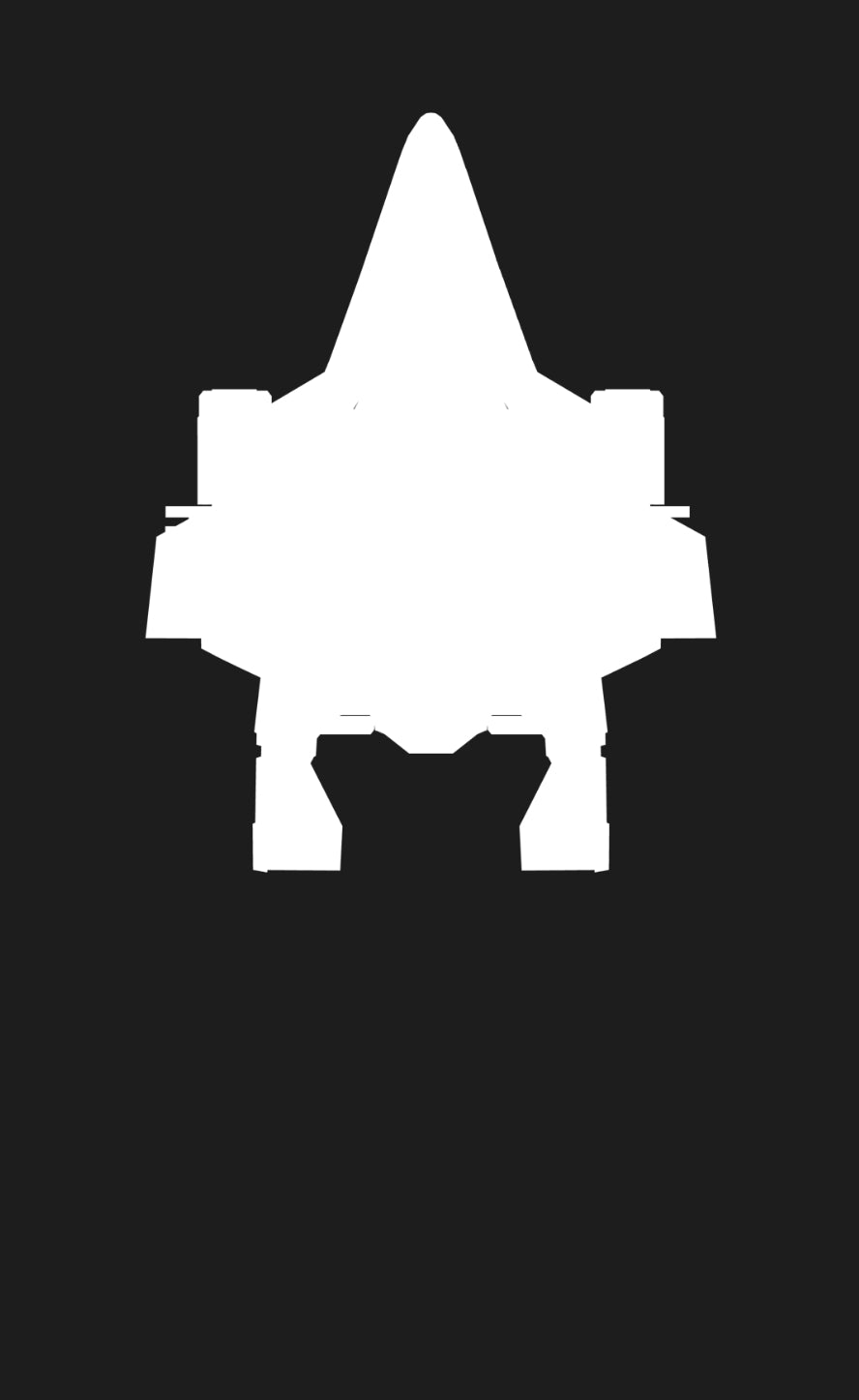
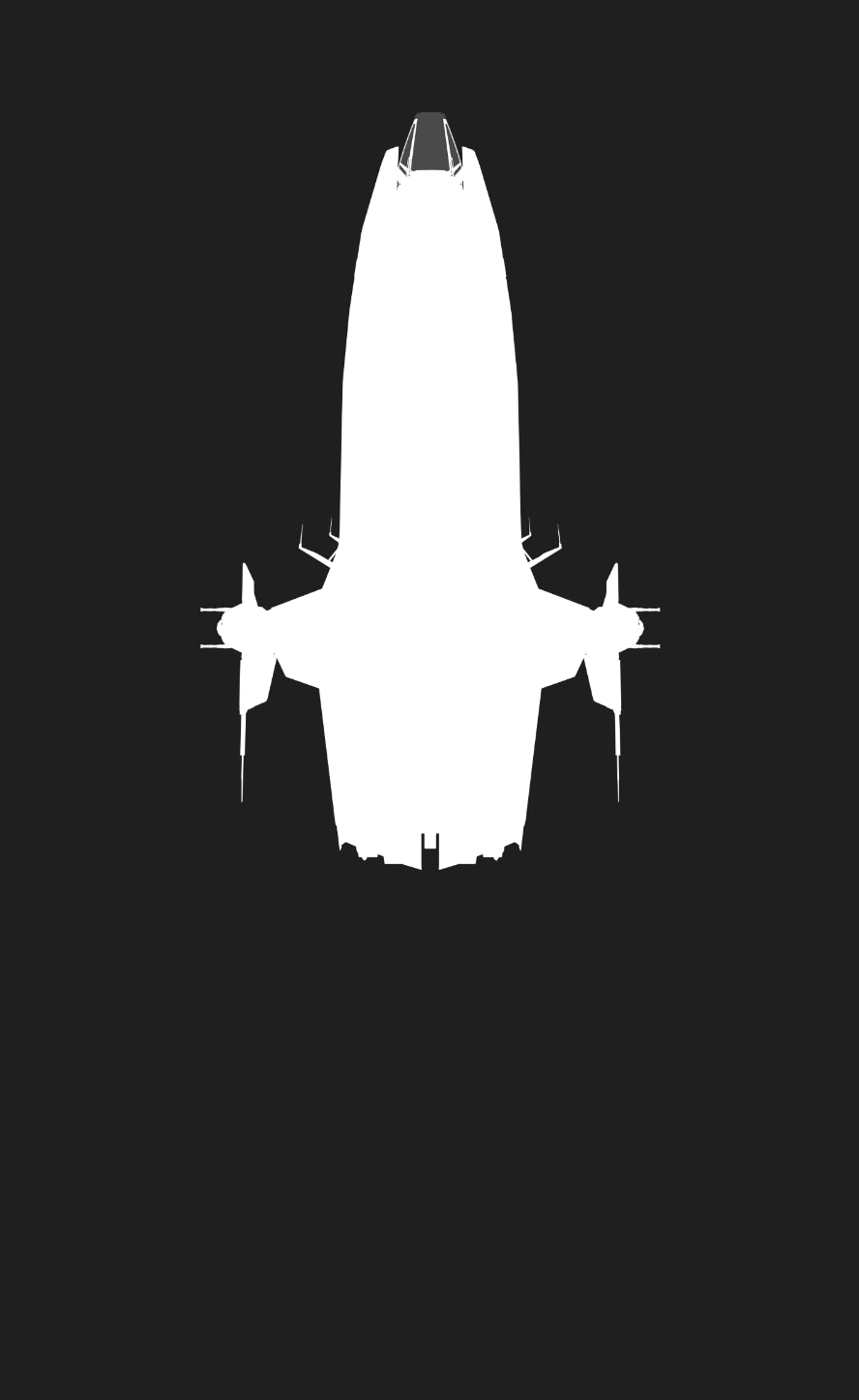
A ship can look enormous in one promotional image and compact in the next. Put two of them beside each other at the same scale and the comparison becomes much more useful. The C1 Spirit’s broad wings and the Zeus CL’s narrower outline are a good example: their lengths are close, but their silhouettes tell very different stories.
Our Fleet in Focus 3D viewer lets you explore those differences. The Star Citizen Ship Matrix handles the other half of the decision, helping you browse ships by the work you want to do and the crew you have available. Use one to understand the shape and scale of a ship, and the other to find candidates worth a closer look.
Put your ships side by side in Fleet in Focus
Open Fleet in Focus and choose Browse fleet. The picker lists models from smallest to largest, with a search field for a ship you already have in mind. You can include or exclude ground vehicles and bikes, so a search for your next spacecraft does not have to take you through every rover first.
Select a model to bring it into view. The information panel gives you its role, length, crew and cargo, with Specifications opening further details. Front, side and top views let you inspect different aspects of the shape; the rotation controls and dragging give you more freedom to look around it.
- Choose your first ship through Browse fleet.
- Select Compare sizes to open the lineup picker.
- Add the ships you want to see together, then choose View comparison. The current tool supports up to six models.
- Switch between front, side and top views, or rotate the models together. They remain at a shared metre scale.

The top view is particularly helpful with ships whose wings or nacelles add substantial width. A side view makes the height of a hull easier to appreciate. Neither needs to be a competition to find the biggest ship: often the useful discovery is that two similarly long ships occupy space very differently.
Use + Add a ship to expand the lineup and the remove controls to pare it back. Back to fleet returns to browsing. Light mode and reduced-motion controls are available if those make the viewer more comfortable for you.
What a size comparison cannot tell you
The viewer is useful for scale and exterior form. It cannot prove that a vehicle will fit through a cargo ramp, that a fighter will clear a hangar entrance, or that a particular landing configuration will work in-game. Those questions depend on openings, moving parts and usable interior space, not just overall length.
It also does not measure combat performance. A wider ship is not automatically tougher, and a compact silhouette does not tell you how it handles under fire. Once a model catches your eye, its actual role and layout still deserve attention.
Find ships for the work you want to do
The Ship Matrix is the better starting point when you know the job but have not chosen the ship. Open Catalog and begin with Playstyle: cargo, combat, exploration, industrial, medical and other categories are available. Subrole lets you get more specific, such as narrowing industrial choices to mining or salvage.
From there, use the filters that matter to your plans:
- Crew: narrow the selection around a single seat, a small group, a two-person team or larger crews.
- Cargo: choose a capacity band instead of sorting through everything from zero-cargo fighters to bulk freighters.
- Size: focus on anything from ground vehicles and snubs to capital ships.
- Status: select flight-ready ships if you want to consider vehicles available to fly, rather than mixing them with concepts.
- Manufacturer: stay with a favourite marque, or leave the field open to alternatives.
Search works alongside those filters. If a ship seems to be missing, check the active filters before assuming it is absent from the catalogue. Clear filters gives you a clean start.
Each card brings key information together and offers further details. The sorting options include cargo capacity, crew, speed and size. There is also a Rankings view for cargo capacity, SCM speed, length and shield strength, with a flight-ready-only checkbox to keep unreleased ships out of that comparison.
A practical example: C1 Spirit or Zeus CL?
Suppose you want a cargo ship for a small crew. Start in Catalog with cargo and flight-ready filters, then search the C1 Spirit and Zeus Mk II CL. The matrix shows their cargo capacities as 64 SCU and 128 SCU respectively. That is a substantial difference in cargo volume despite their similar overall length.
Now put both models into Fleet in Focus. Seeing the shapes together helps explain why a length figure alone is such a poor guide to the experience of owning a ship. The C1 spreads out across its wings, while the Zeus packs its distinctive form into a narrower outline. You have a much better starting point for reading about the cargo holds, entrances and life aboard.
Our C1 Spirit vs Zeus CL comparison takes that next step. The tools help you find and visualise the candidates; a dedicated comparison can spend time on the compromises that a single filter cannot express.
Read the figures in context
Ship specifications change during development, and the tools display dated data. A crew field is also not a promise that every role aboard will be covered by that many players in every situation. Likewise, listed cargo volume does not describe every obstruction, container arrangement or loading job.
For a recently reworked ship, follow up with current coverage before making a decision based on an older snapshot. If two sources round dimensions differently, avoid treating a tiny numerical difference as a meaningful advantage. Use the tools to narrow your choice, then read the details that will affect your own flying.
From the shortlist to your next ship
Once you have found a hull that suits you, the viewer’s View offers and Explore links take you towards the relevant Impound collection. The matrix also connects ships to guides and offers.
At that stage, check the exact listing: a complete ship, an Original Concept and a CCU are not interchangeable descriptions. The tools help you choose the ship; the listing confirms the item you are buying. If your search is still wide open, start with a ship you know and put a few alternatives beside it. Seeing them together is half the fun.
See your next ship in a new way
Explore the fleet in 3D, then find the ship that fits your plans.
Open Fleet in Focus