







Star Citizen VR Controls: Aiming, Cursor Tracking and Zoom

Bring the cockpit into focus: tune Star Citizen’s VR zoom, recover a restricted cursor and work around awkward medical-bed controls.
Looking at a control, aiming a rifle and lining up a tractor beam ask different things of a headset. Star Citizen’s native VR controls now handle more of those actions in three-dimensional space, while Alpha 4.10.2 adds a separate zoom system that follows your headset’s alignment with the target. You can reduce that zoom effect or switch it off without abandoning VR.
Native VR remains experimental. Alpha 4.10.2 reached Live on 9 October with experimental VR updates; the setup below brings together its zoom controls and earlier tracking improvements. Snap turning and the proposed scope-lock changes are separate development plans, not features confirmed here as delivered.
Enable VR for the environment you actually play
Close Star Citizen before changing VR support. In the current RSI Launcher, open the menu from the RSI logo at the upper left, choose Settings, then Games. Select your game environment—Live or PTU—and enable VR Support. The launcher shows a VR indicator below the environment selector when it is enabled.
Enable VR separately for the environment you intend to use. If you need to return to ordinary play or troubleshoot without entering the game, close Star Citizen, open the launcher’s gear menu beside the environment selector and choose Disable VR mode.
Make the crosshair visible and keep interaction in the world
Alpha 4.8 moved interaction prompts and indicators into world space. The FPS crosshair and hitmarkers also moved into three-dimensional space, with the crosshair re-enabled for VR. If it is missing, check that Crosshair Mode is enabled in Game Settings and that Crosshair Opacity is set high enough to be visible.
Those changes let the prompt or aiming marker sit within the headset view instead of relying on a flat overlay. Procedural head recoil while firing was disabled in VR as part of the same update, removing that particular source of imposed camera movement.
The subsequent marker work included tractor and salvage overlays. Remote-turret salvage UI received a fix in May, tested on the Reclaimer and Moth, followed by the broader marker, tractor and salvage overlay fixes in June.
October zoom follows where your head and weapon line up
Alpha 4.10.2 uses field-of-view narrowing for VR zoom. It applies to F interaction zoom, aiming down sights or precision targeting in ships, and FPS weapon scopes. It is an interim way to use scopes while fully physicalised scopes remain in development.
Zoom Gameplay Strength controls how pronounced the effect is. A lower value reduces it; zero switches VR zoom off. This is the main adjustment for someone who wants the headset view but finds magnification intrusive.
StereoZoom 2.0 activates when the headset view aligns with the target. In Grounded Look it now aligns correctly with a scope when aiming is decoupled from head direction, and positional tracking is no longer locked while zoomed. You can still move your head rather than having zoom freeze that part of tracking.
Six console variables provide finer adjustment. Their defaults and units matter:
-
r_StereoZoomScopeMin: default 1.0. Scopes at or below this magnification do not trigger zoom. -
r_StereoZoomHeadTrackingRotationScale: default 1.0. Controls the reduction in view rotation relative to head movement while zoomed; zero disables that adjustment. -
r_StereoZoomLockAngle: default 10 degrees. Sets how closely your head must point towards the aim direction for zoom to engage. -
r_StereoZoomLockReleaseScale: default 1.5. Adds a release margin so zoom does not flicker on and off at the boundary. -
r_StereoZoomScopeAlignDistance: default 0.04 metres. Sets how close your eye must be to the scope’s line of sight. -
r_StereoZoomSmoothTime: default 0.2 seconds. Sets the time used to ease zoom in and out.
Aim the ATLS tractor beam with your head in Freelook
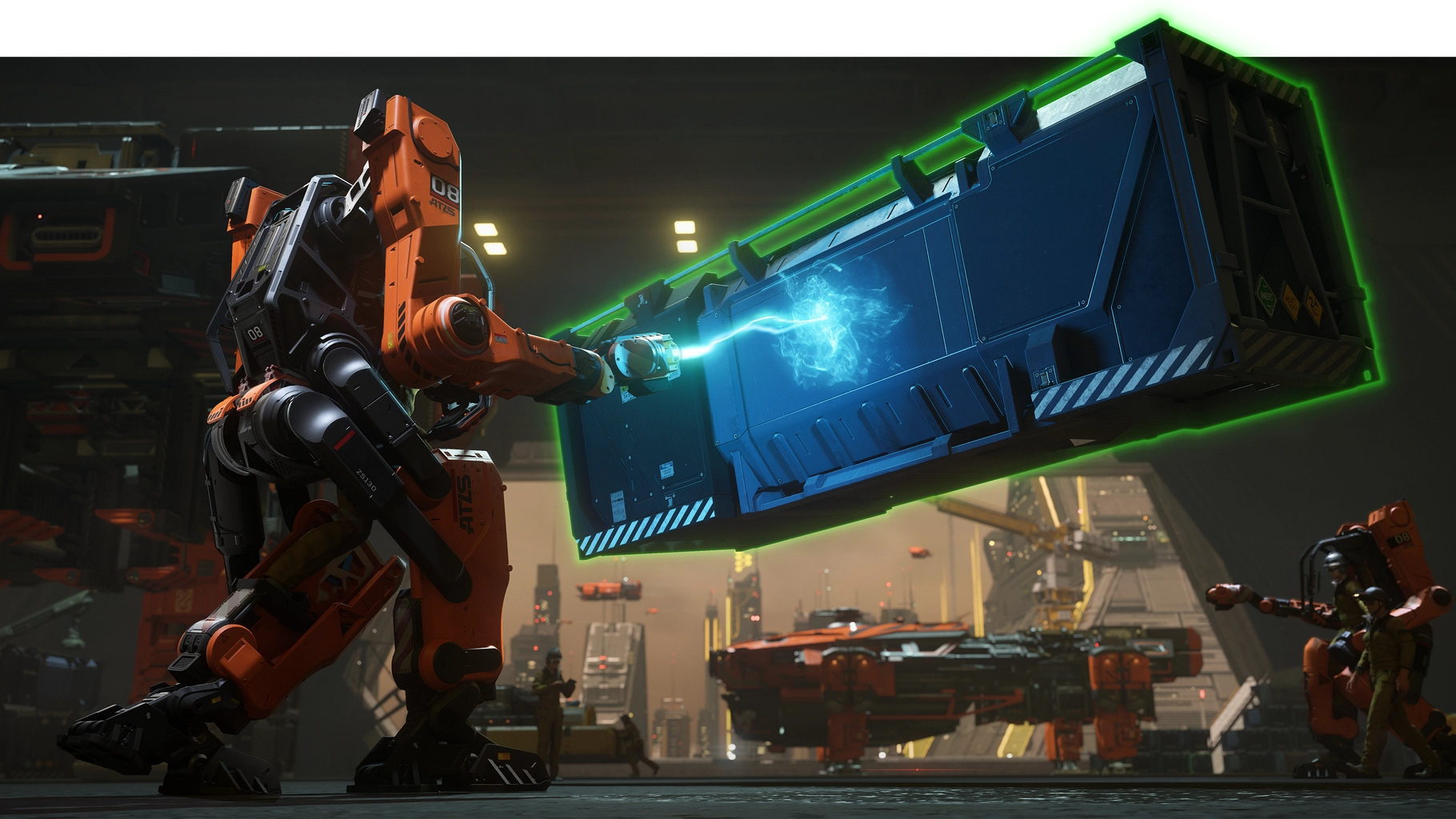
In the October update, entering Freelook with Z while operating the ATLS lets you aim its tractor beam with your head. Grounded Look also uses your aim direction for hand mining and similar actions.
Missile users still have a targeting fix to wait for. The correction missed the 4.10.2 deadline and would likely arrive in 4.11, the VR developer confirmed on 5 October. That release remains unconfirmed, so the October zoom update should not be treated as confirmation that missile locking is fixed.
Tracking, Theatre Mode and the settings that stay put
Since Alpha 4.9, VR keybinds such as Theatre Mode Toggle and Tracking Reset should work throughout the game unless explicitly blocked, including the front end and loading screens. VR mode switches and Theatre Mode preserve resolution, avoiding the need to reconfigure it each time you return to the headset view.
The 4.9 cursor update aligns the stereo cursor with the player’s body so outside movement, such as a train or lift, does not move it. Its maximum view angle defaults to 40 degrees through g_headtracking_hmd_cursorMaxViewAngleDeg; a very high value restores the older unrestricted behaviour. The update also fixes an invisible cursor in ships with radar and applies screen fading directly to the backbuffer so it works in VR. The same release forces direct-offset tracking in EVA when Grounded Look is active to avoid unwanted rotations, and restores three-dimensional EVA direction markers.
OpenXR moved from 1.0.50 to 1.1.60 in that release. With SteamVR, changing resolution in SteamVR settings can update the engine in real time through the supported view-configuration extension. Alpha 4.10 added user-presence extension support for dynamic stereo switching on compatible headsets, including through SteamVR.
The 4.10 head-boundary effect fades the view rather than using the previous hard reset. It begins at 0.4 metres, replacing the older 0.2-metre reset threshold, and also activates when the first-person camera clips through an object. Theatre Mode transitions have their own configurable fade time through r_StereoTheaterModeFadeTime.
When the cursor will not reach where you are looking
Check g_headtracking_hmd_cursorMaxViewAngleDeg if you have changed the cursor range. Its default is 40 degrees; lowering it restricts how far the cursor can move. Returning a modified value to the default is a useful first step before changing other tracking settings.
You can also lock the cursor to head movement and still adjust it with the mouse. That option already exists, as the VR developer clarified on 16 October. It is separate from the proposed weapon-sight lock, so do not confuse the two when choosing your controls.
Tobii and headset eye tracking are different systems
The Tobii SDK is disabled when VR is enabled because the two are incompatible. Headset eye-tracking support is also limited. A Tobii setup that works on a monitor therefore does not establish that the same tracking will work inside a headset. For ordinary monitor play, use our Tobii setup guide.
Depth of field can be switched off
If depth-of-field blur is distracting in your headset, you can disable the effect. On 19 October, the VR developer confirmed that its trigger distance still needs adjustment for VR and said a fix was coming. No build or delivery date was specified, so treat that adjustment as pending.
Reaching medical-bed controls
If a medical bed’s overhead panel is difficult to reach in VR, switching to Theatre Mode may let you use it without straining to look behind you. Players reported this workaround in the official VR discussion.
A fix is on the way, but its arrival on Live has not been confirmed. On 20 October, Silvan-CIG said the correction was already in a build but had not reached Live to his knowledge. This was a reply about medical-bed interaction, separate from the depth-of-field setting above.
VectorXR and Easy Anti-Cheat
Players interested in VectorXR’s frame generation have also asked whether it can be used with Star Citizen. Silvan-CIG’s 21 October answer was conditional: it must run alongside Easy Anti-Cheat and involve no hack. Keep Easy Anti-Cheat enabled; the reply does not establish compatibility or performance for a particular VectorXR version.
Mouse smoothing stays disabled in VR
The October patch fixes mouse smoothing and acceleration settings resetting to zero when switching into VR. That preserves settings; it does not turn smoothing on inside VR. The developer clarified on 6 October that smoothing is intentionally disabled there because it can provoke nausea.
The same build treats wearing the headset as user activity, so observing without another input should no longer cause an inactivity kick. It also fixes some three-dimensional UI icons disappearing after their spawn animation.
Earlier fixes addressed split-eye shadows, bright-light artifacts when taking fire, kiosk interactions causing unintended movement, shadow flicker, head tracking affecting comm-call cameras and third-person camera collision.
Alpha 4.10 also corrected VRAM reporting and multi-choice hologram interactions, synchronised G-force blink effects across both eyes, disabled chromatic aberration in VR, and enabled the water simulation and underwater shader. Holographic displays—including ship radars and the New Babbage greeter—received proper VR rendering.